
VAS Dealer: an app for service sellers
VAS Dealer is a phone app for sellers of value-added services (VAS), the extra services that subscribers sign up for on a mobile network. The word Dealer in the name means seller. Sinh Vũ designed the iPhone interface so sellers can sign in, look up what they have sold, check their commission and read the news right on their phone.
A working tool for service sellers
A seller of value-added services invites mobile subscribers to sign up for extra services and earns commission on each sale. VAS Dealer is their working tool on the phone.
The screens Sinh Vũ designed show the app's four main jobs: signing in, looking up sales history, viewing personal information together with commission earned, and reading the news. Each job has its own screen.
A simple sign-in on dark blue
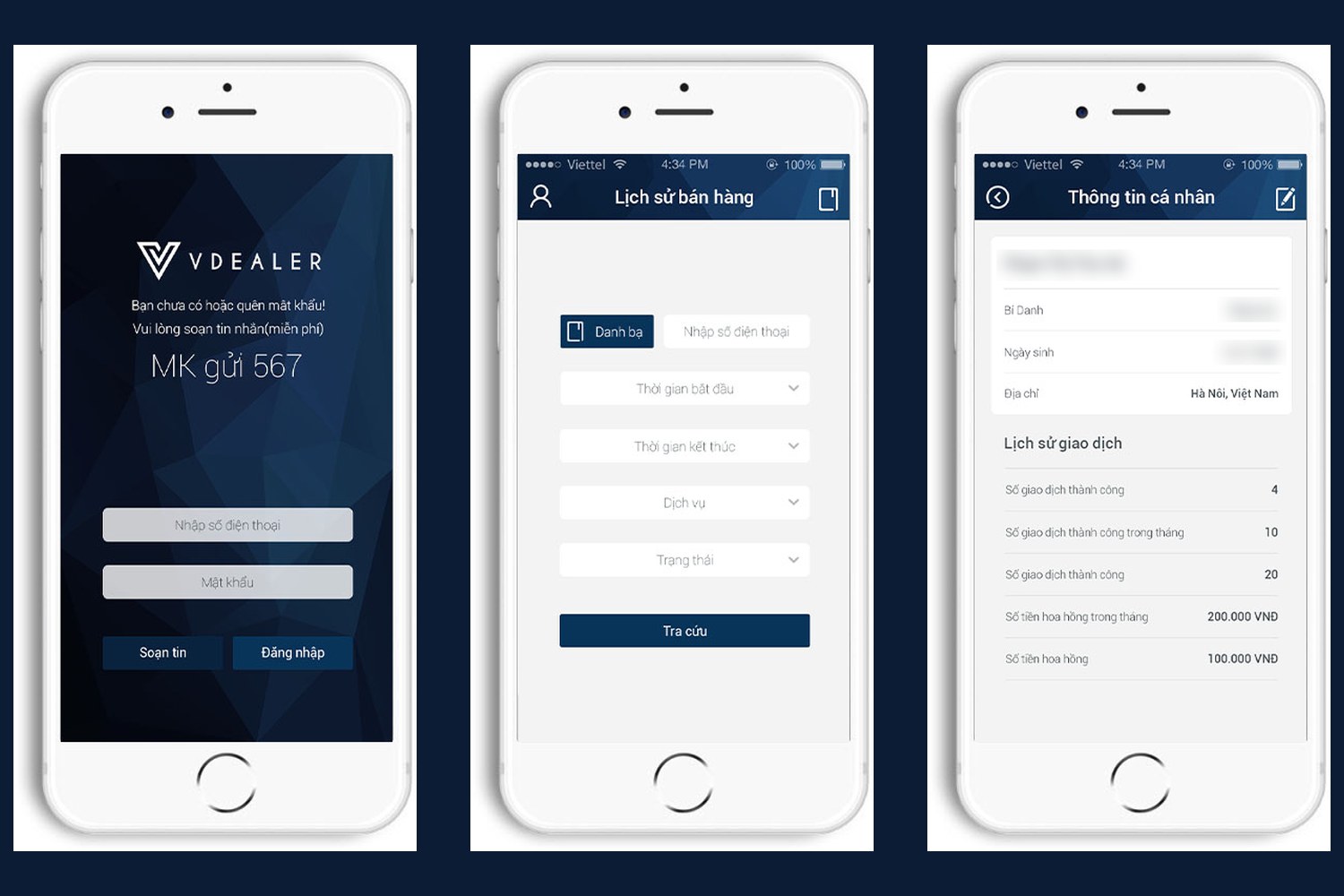
The first screen has only the V logo with the name VDEALER, two fields for phone number and password, and two buttons, Send message and Sign in. Just below the logo is a note for anyone who has no password or has forgotten it: send a free text message in the form MK to 567. The line MK to 567 is the largest type on the screen, so a seller sees at once how to get a password.
The background is dark blue with angular cut-out shapes, and white text stands out clearly on it. The inner screens reuse this blue in the title bar and the buttons, so the whole app looks like one set.
Looking up what has been sold
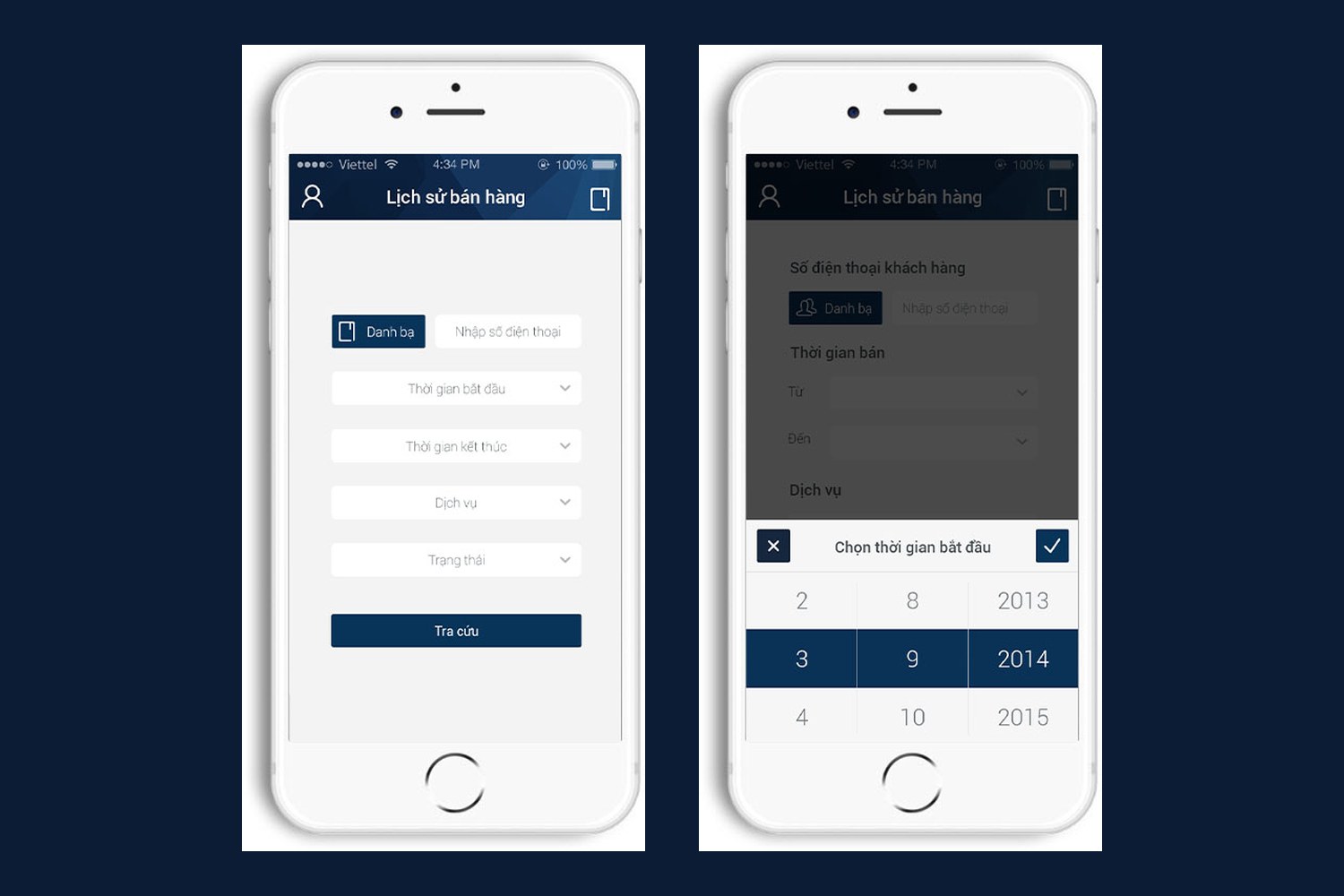
The Sales history screen is a short form that lets a seller review their own sales. The fields run in order: the customer's phone number (picked from contacts or typed), start time, end time, service, status. At the bottom is a dark blue Search button.
The fields share one width and sit in a single column, so the eye moves down the page without getting lost. When choosing a date, a three-column scroll wheel (day, month, year) slides up from the bottom of the screen, with the selected row highlighted in dark blue. The seller scrolls and taps the tick, with no need to type dates on a small keyboard.
Personal information and news
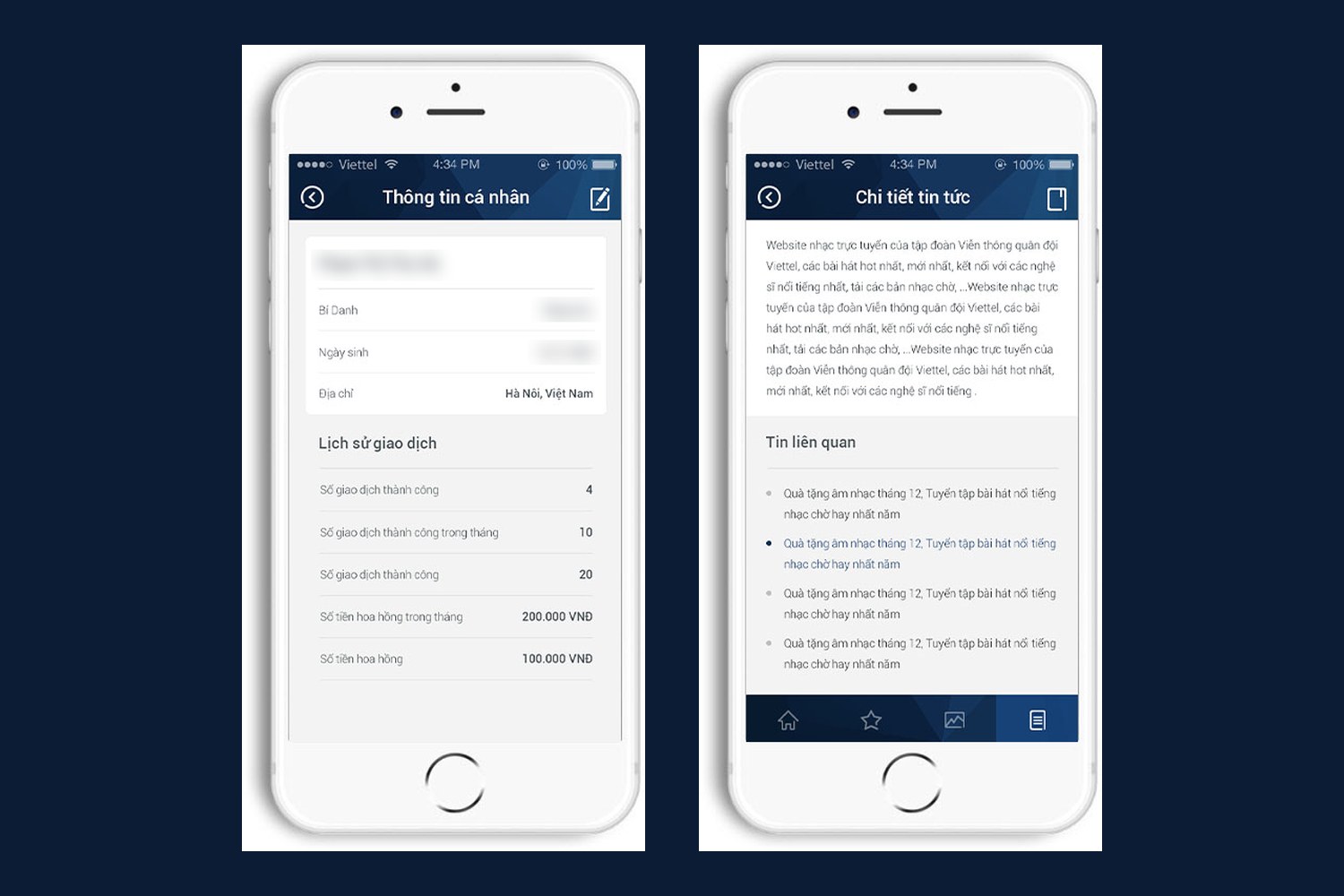
The Personal information screen has two parts. The upper part is the seller's profile: full name, alias, date of birth, address. The lower part is Transaction history: the number of successful transactions, the number of successful transactions this month, the commission earned this month and the commission total. Figures sit against the right edge in bold type, so they can be read at a glance.
The News detail screen shares the same frame as the others: a blue title bar on top, content on a white ground, and a Related news section below. At the bottom, a bar of four icons lets the seller switch quickly between the app's main sections.
Why keep one shared frame
Every VAS Dealer screen does one job: sign in, look up, view figures, read news. The title bar, the blue, the button style and the way fields are laid out stay the same from screen to screen.
A seller who has learned one screen knows where the buttons are and what to tap next on any other. For an app opened every day for work, that familiarity helps sellers work faster and make fewer wrong taps.